In the fast-paced world of logistics, e-commerce, and manufacturing, marking cardboard cartons is no longer just about writing an address with a marker. Today, precision, speed, and flexibility rule the warehouse floor. Enter the Handheld Inkjet Printer—a revolutionary tool that puts industrial-grade printing power in the palm of your hand.
Whether you are shipping products globally or organizing inventory, learning how to use a Handheld Inkjet Printer for carton printing can save you thousands of dollars in labels and reduce manual labor significantly.
This guide will walk you through everything you need to know, from unboxing to advanced printing techniques, while keeping the language clear and actionable for general audiences.
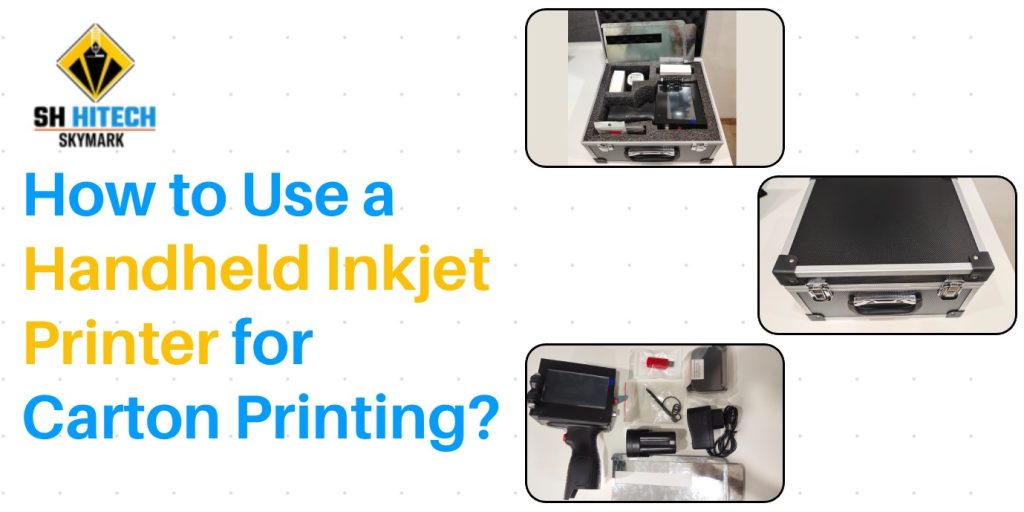
What is a Handheld Inkjet Printer?
A Handheld Inkjet Printer is a portable, battery-operated device that allows you to print variable data—such as dates, barcodes, logos, and batch numbers—directly onto cartons, boxes, and other porous surfaces. Unlike traditional heavy-duty printers fixed to a conveyor belt, this device glides smoothly over the surface by hand.
Why it matters for carton printing:
- No need for pre-printed boxes.
- Eliminates adhesive label costs.
- Prints on demand, exactly where you need it.
Step 1: Unboxing and Initial Setup
When you first purchase a Handheld Inkjet Printer, the setup is surprisingly straightforward.
- Charge the battery– Most models come with a lithium battery. A full charge typically lasts 8–10 hours of intermittent use.
- Install the ink cartridge– Open the side compartment. Use only high-quality water-based or solvent inks designed for cardboard (water-based is best for uncoated cartons).
- Load the software/driver– Many modern handheld printers connect via USB or WiFi to a PC or mobile app for design transfer.
Pro Tip: Before first use, perform a “nozzle check” (usually via the LCD touchscreen). This ensures no ink has dried inside during shipping.
Step 2: Designing Your Print
Here is where the Handheld Inkjet Printer shines. You are not limited to plain text.
Using the companion software (often free with brands like SH Hitech Solution or similar), you can design:
- Product names & SKU numbers
- Dates (Expiry/Manufacturing)
- 1D or 2D barcodes (QR codes, Data Matrix)
- Small company logos (monochrome)
- Resolution:Keep it at 150–300 DPI for corrugated cardboard.
- Font size:Use bold, sans-serif fonts (e.g., Arial Bold). Thin fonts bleed into the cardboard fibers.
- Orientation:Design vertically or horizontally depending on how you will hold the printer.
Export your design to a USB drive or sync it via Bluetooth to the Handheld Inkjet Printer.
Step 3: Calibration and Surface Preparation
Carton printing is not like printing on paper. Cardboard is porous and sometimes dusty.
Before you print:- Clean the surface:Wipe the carton area with a dry cloth to remove dust. This prevents missing dots.
- Set the print gap:Most handheld printers have a sensor wheel. You want the printhead to hover roughly 2-3mm above the carton.
- Select the material mode:On your Handheld Inkjet Printer, choose “Corrugated,” “Cardboard,” or “Uncoated Paper.” This adjusts ink volume.
Common mistake: Pushing too hard. Let the printer’s guide wheels touch the carton lightly. Pressing down deforms the box and smears the ink.
Step 4: The Printing Process – Step by Step
Now for the action. Using a Handheld Inkjet Printer for carton printing involves manual motion, but modern models include electronic sensors to prevent errors.
How to print correctly:- Power on the deviceand select your saved design from the library.
- Hold the printer at a 90-degree angleto the carton surface (perpendicular).
- Press the trigger or start button– You will hear a small beep or see a green light.
- Slide the printer smoothlyacross the box from left to right (or top to bottom) at a steady speed.
- Too fast→ Faded, broken print.
- Too slow→ Ink pooling, smudging.
- Ideal speed→ About 5–10 cm per second (practice on scrap cardboard).
- Release the trigger after finishing the stroke. The printer automatically stops ink flow.
Sensor technology: High-end Handheld Inkjet Printers feature an encoder wheel. This wheel tracks movement. If you pause mid-stroke, the sensor remembers where you stopped and resumes seamlessly. No double printing.
Step 5: Printing Variable Data (Dates, Batch Numbers)
One of the best uses for a Handheld Inkjet Printer on cartons is variable data. Instead of printing 1,000 identical boxes, you print dynamically.
- Date shifting:Set the printer to automatically add +1 day for each new box (great for fresh food packaging).
- Batch counters:The printer increments a counter after every print (e.g., Batch #001, #002).
- QR code linking:Print a unique QR code on each carton that links to a packing slip or tracking page.
- In your design software, insert a “Variable Field” (date, counter, or text).
- Sync the data via CSV file or real-time input.
- The Handheld Inkjet Printerwill prompt you to “Scan next barcode” or “Auto increment” after each print.
Common Mistakes (And How to Avoid Them)
Even with a premium Handheld Inkjet Printer, beginners make errors. Avoid these:
| Mistake | Solution |
| Ink smudging | Let the carton sit for 10 seconds before stacking. |
| Missing lines in print | Clean the printhead nozzles (use the built-in cleaning cycle). |
| Printer not starting | Check the trigger sensor. Some require a double-tap for safety. |
| Crooked prints | Use the alignment guide rail (an optional accessory for straight lines). |
| Barcode fails to scan | Increase contrast. Print barcodes at 100% size, never shrink them. |
Maintenance: Keep Your Handheld Inkjet Printer Healthy
A Handheld Inkjet Printer is an investment. Here is a 2-minute daily routine:
- Shake the cartridge(gently) each morning.
- Run a test printon scrap cardboard.
- Wipe the encoder wheelwith a lint-free cloth.
- Park the printheadin its cradle or cap station to prevent drying.
For long-term storage (over 2 weeks), remove the cartridge, seal it in a zip-lock bag with a damp paper towel (not touching the nozzle), and store it vertically.
Why Switch from Labels to a Handheld Inkjet Printer?
Business owners often ask: “Why not just use adhesive labels?” Here is the cost breakdown per 1,000 cartons:
- Labels + Ribbon (for thermal transfer):~45–45–70
- Labor to apply labels:~$30 (15 minutes per 100 boxes)
- Handheld Inkjet Printer ink:~3–3–5 per 1,000 small prints
- Speed: Print a carton in 2 seconds versus 8 seconds for peeling and sticking a label.
- Flexibility: Change the design instantly without waiting for pre-printed boxes.
- Eco-friendly: No label backing paper to throw away.
Conclusion: SH Hitech Solution – Your Partner in Industrial Printing
To truly harness the power of a Handheld Inkjet Printer for carton printing, you need a reliable partner who understands the nuances of industrial marking. SH Hitech Solution stands out as a leader in this space, offering advanced yet user-friendly handheld printers tailored for cartons, corrugated boxes, and heavy-duty packaging lines.
With years of expertise across manufacturing, logistics, and food & beverage industries, SH Hitech Solution provides not only durable hardware but also comprehensive support—from ink formulation (for porous cardboard) to seamless integration with existing ERP systems. Their commitment to innovation ensures that even a general audience can adopt industrial automation without a steep learning curve. Whether you run a small warehouse or a multinational production facility, SH Hitech Solution brings professional-grade reliability to every print.
Request Product Details & Pricing Now
Email: contact@shhitech.inPhone: +91-9011116630 | +91 9112711560
Website: https://shhitech.in/